

When the vibrate feature on your iPhone malfunctions, it can be very frustrating, especially when you miss an important work call.
Fortunately, there are several troubleshooting options you can try to resolve the issue. Let's start with the simplest solution.
Test the Vibration Motor on the iPhone
The first thing to do is test the vibration motor to see if it’s still functional.
1. Flip the iPhone's ring/silent switch, which is located above the volume buttons on the left side of the phone. The location is the same on the various iPhone models.
2. If Vibrate on Ring or Vibrate on Silent is enabled in Settings, you should feel a vibration.
3. If your iPhone does not vibrate, it is unlikely that the vibration motor is broken. Instead, you may need to adjust it in the Settings app.
How the Vibration Motor Works with the Silent/Ring Switch?
If the "Vibrate on Ring" setting is enabled in the Settings app on your phone, the Silent/Ring switch should vibrate when you move the Silent/Ring switch toward the front of your iPhone.
If Vibrate on Silent is activated, the switch will vibrate when you push it back.
If both features are disabled in an app, your iPhone will not vibrate regardless of the switch position.
gs app, then scroll down and select Sound & Haptics.
Common Causes of iPhone Vibration Issues
1. Old iOS versions often have bugs that disrupt haptic feedback. Temporary software glitches can also occur due to app conflicts or system overload.
2. Incorrect Settings: Vibration toggles in "Sounds & Haptics" or "Accessibility" may be disabled, or third-party apps might be interfering with permissions.
3. Physical Damage to the Taptic Engine: Dropping your iPhone, hitting it hard, or exposing it to water can damage the vibration motor (Taptic Engine). Signs include no vibration, uneven haptics, or rattling/buzzing noises.
4. Battery-Related Problems: A degraded battery (health below 80%), low power mode, or using uncertified chargers can affect the motor’s power supply.
5. Third-Party App Conflicts: Apps from untrusted sources (not the App Store) may clash with iOS, disrupting vibration functionality.
What to do When Your iPhone Will Not Vibrate in Silent or Ring Mode?
Start with these simple tests to confirm if the vibration motor is functional, then move to quick fixes.
1. Test Vibration with the Ring/Silent Switch
The fastest way to check basic vibration functionality:
Locate the Ring/Silent switch on the left side of your iPhone (above the volume buttons)—it’s in the same position across all models.
If "Vibrate on Ring" is enabled, flipping the switch toward the front of the phone should trigger a vibration.
If "Vibrate on Silent" is enabled, pushing the switch back (to Ring mode) should vibrate.
No vibration? Skip to the settings checks below—this likely isn’t a hardware issue yet.
2. Verify Vibration Settings in "Sounds & Haptics"
Incorrect settings are the #1 fixable cause:
Open Settings → Scroll to Sounds & Haptics.
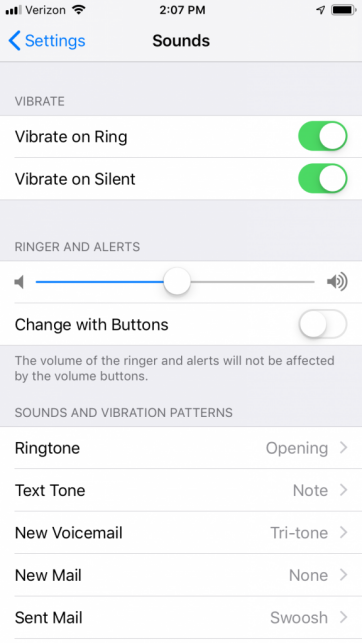
Ensure "Vibrate on Ring" and "Vibrate on Silent" are toggled on (green).
Adjust "Haptic Strength" to your preference—weak vibrations may feel like no vibration at all.
New iPhones: Double-check these settings, as default configurations can differ from older models.
3. Enable Vibration in Accessibility Settings
If vibration is disabled here, even a working motor won’t respond:
Go to Settings → General → Accessibility.
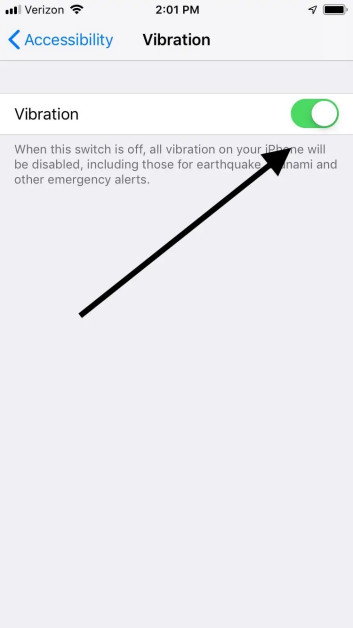
Find the "Vibration" toggle and turn it on (green).
Note: Disabling this switch turns off ALL vibrations—including emergency alerts (e.g., earthquake, tsunami).
4. Check Battery Health & Power Settings
A weak battery or low power mode can disable vibration:
Open Settings → Battery → Battery Health. If capacity is below 80%, the battery may struggle to power the Taptic Engine—consider a replacement.
Turn off Low Power Mode (it disables vibration to save battery).
Use only Apple-certified chargers—cheap, uncertified chargers damage batteries over time.
If your iPhone won't vibrate in silent or ring mode, It's easy to fix.
Open the SettinYou'll come across two potential options: vibrate on ring and vibrate on silent. To enable vibration in silent mode, click to the right of the setting. If you want to enable vibration in ring mode, click to the right of this setting.
Turn on Vibration in the Accessibility Settings
If you've tried to modify your phone's vibration settings through the Settings app without success, the next step is to enable Vibrate in Accessibility Settings. It is important to note that if Vibration is not activated in Accessibility Settings, the vibration motor will not respond even if it is working properly.
1. Go to Settings.
2. Go to General.
3. Next, navigate to the Accessibility section where you will find an option labeled Vibrate. Click on the right side to activate the switch. If the switch turns green, you can be sure it's enabled and your phone should vibrate as expected.
What if Your iPhone Still Doesn’t Vibrate?
If you've performed all the above steps and your iPhone still isn't vibrating, you may consider resolving the issue by completely resetting your phone's settings.
This may resolve any software-related issues causing the issue. Occasionally, faulty iOS updates may also affect the functionality of your phone.
How to Prevent iPhone Vibration Issues
Keep your Taptic Engine in top shape with these simple habits:
Protect Your iPhone: Use a shockproof case and screen protector to avoid drops and collisions. Keep it away from liquids.
Use Certified Accessories: Only charge with Apple-approved chargers and cables to protect the battery.
Manage App Permissions: Regularly review "Privacy & Security" settings to disable unnecessary vibration access.
Monitor Battery Health: Check battery health quarterly—replace batteries below 80% capacity.
Avoid Overusing Vibration: Disable non-essential haptics (e.g., keyboard vibration) to reduce motor wear and save battery.
FAQ
Q1: Can third-party apps permanently break my iPhone’s vibration?
A1: No. Third-party apps only cause temporary interference—uninstalling the app restores vibration. Always download apps from the App Store.
Q2: How do I know if the Taptic Engine is broken?
A2: Signs include no vibration, uneven haptics, or strange noises during vibration. If you notice these after a drop or water exposure, the motor is likely damaged.
Q3: Will resetting my iPhone fix all vibration problems?
A3: A factory reset fixes software issues but not hardware damage. Always back up data before resetting.
Q4: Does using haptics drain the battery?
A4: Yes—features like keyboard vibration use extra battery. Adjust haptic strength or disable non-essential haptics in "Sounds & Haptics" to save power.
Q5: Can I use an iPhone app to test my vibration motor’s performance?
A5: Yes. Apps like the Vibration app (by Diffraction Limited Design LLC) use the iPhone’s accelerometers to measure vibration amplitude and frequency. While not as precise as industrial tools, they’re great for verifying basic motor functionality.
By following this guide, you’ll resolve most iPhone vibration issues quickly. For hardware problems, trust Apple’s experts to get your device back to full functionality. Let us know in the comments if you found this guide helpful!
As a direct manufacturer of mobile vibration motors, we also supply high-quality Phone Vibration Motors for brands and OEM projects. If you're testing vibration performance on iPhone and need reliable components for your own device development or repair business, our motors are built for durability and stable haptic output.
As a direct manufacturer, we provide fast sample delivery
Post time: Jun-22-2024


